If you are comparing tools in a 3d ai maker workflow, this article explains where Meshy and Tripo differ for game-asset generation, rigging, textures, topology, and export readiness.
For a game asset, the best-looking render is not necessarily the best file to animate or ship. I would choose Meshy when texture work and ready-made motion matter most, and Tripo when mesh topology needs to fit a character or prop pipeline.
The short version
- Choose Meshy if you need to retexture an existing mesh or try its auto-rigging and animation presets in the same platform.
- Choose Tripo if you need a native quad mesh with a specified polygon budget before rigging or bringing an asset into an editor.
- Inspect geometry without textures first. A convincing material can hide awkward edge flow, fused parts, or detail that exists only in a texture.
- Test the exported file in your actual workflow. A platform preview cannot tell you how much cleanup remains before the asset is usable.
Start with the asset’s bottleneck
A static background prop and an animated character ask different things of a generator. A prop may need a readable silhouette, sensible material maps, and a manageable face count. A character also needs geometry that bends predictably, plus a rig and animation workflow that survives export.
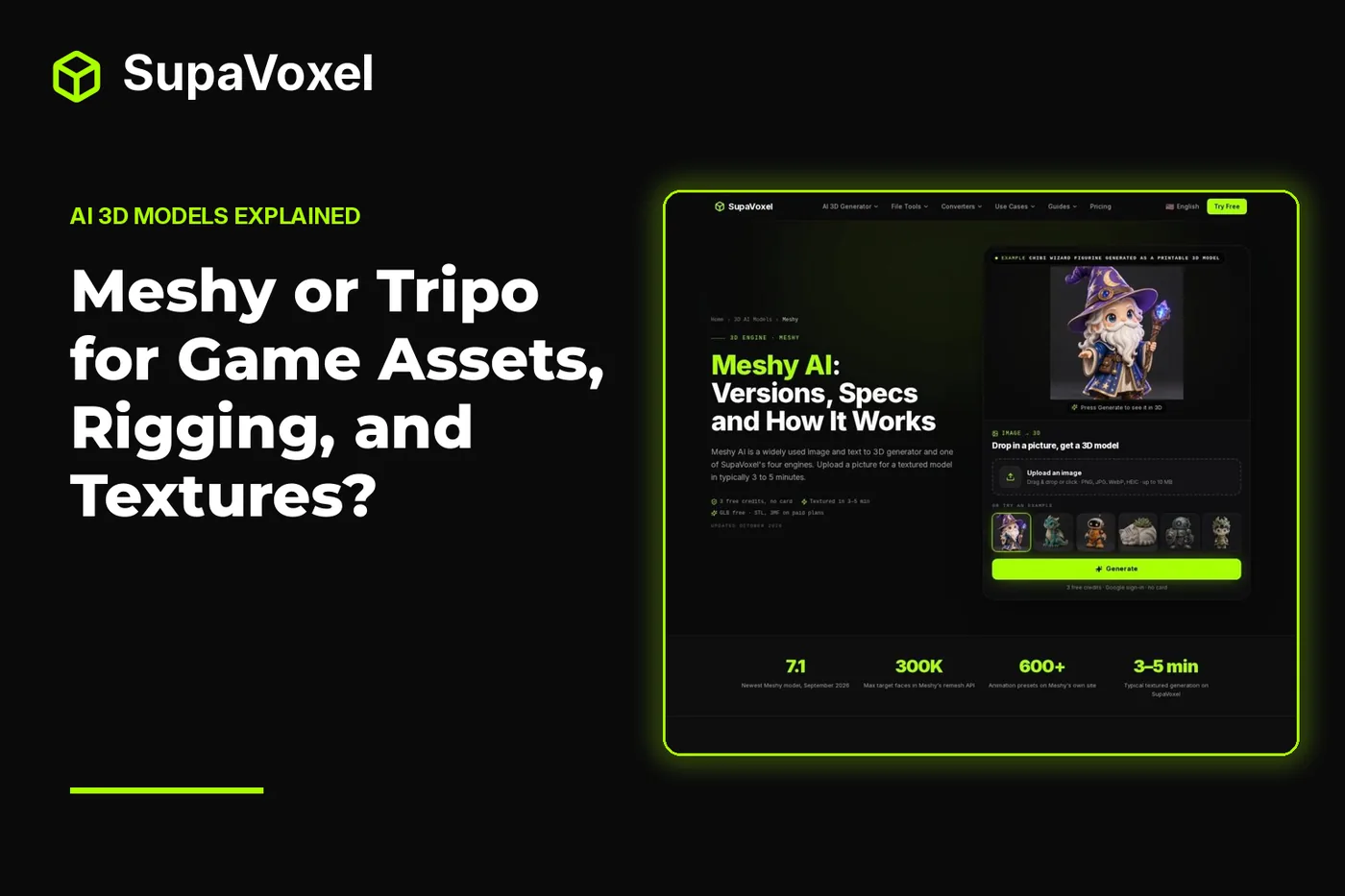
The Meshy AI model guide explains its generation, retexturing, rigging, and animation tools; those are the capabilities I would examine first for an asset whose appearance or motion is the main challenge. Meshy accepts text, a single image, or up to 4 views of the same object. Its outputs include a PBR map set: base color, normal, metallic, roughness, and emission. That distinction matters because a normal map can suggest surface relief without adding geometry, while roughness and metallic maps affect how a material responds to light.
Neither attractive textures nor a high polygon count guarantees a good deformation mesh. At a joint, triangles with uneven density can make a bend look pinched. For a static object, that may be irrelevant. For a character, it can become the cleanup task that determines the whole schedule. Decide which problem you need the generator to solve before comparing its showcase images.
Where Meshy earns its place
Meshy offers a broad path from source image or prompt to textured asset. Its retexture tool is particularly useful if the shape is already acceptable but the surface treatment is not: you can work on the appearance of a mesh you have rather than regenerate its geometry to chase a different color scheme. On Meshy’s own platform, auto-rigging supports humanoids and quadrupeds, and its animation library has 600+ motions.

The Meshy page brings its model versions, texture maps, rigging tools, and output limits into one reference.
For a game artist, I would treat those motions as a way to test the asset, not proof that it is production-ready. Watch the silhouette at the shoulders, hips, and any narrow attachments during movement. Then inspect the exported asset in the engine or editor where it will live. Look for material changes, unexpected shading, and pieces that move in a way the character design did not intend.
Meshy also offers remeshing with a target of 100 to 300,000 faces, with 30,000 as the default, and a low-poly Smart Topology option from 100 to 30,000. Those controls help with density, but a face target is not the same thing as choosing edge loops for a specific joint. If deformation quality is the deciding requirement, judge the moving result rather than the polygon setting alone.
Where Tripo’s topology changes the decision
The Tripo AI model guide is the reference I would use when planning a quad-based game asset: its Smart Mesh option produces native quads in a range of 500 to 25,000 polygons. Quads give a rigger a more predictable starting point for reading edge flow around joints. They do not automatically place every loop where your particular character needs it, but they make topology a deliberate output choice rather than only a later cleanup job.
Tripo also has an H3.1 high-detail option reaching up to 2 million polygons. That is a different decision from choosing Smart Mesh. Dense detail can help a close-up asset look convincing, but it does not replace a lighter mesh suited to real-time use or deformation. Pick the output for its destination, not because the larger count sounds safer.

The Tripo page distinguishes its high-detail model from the quad-focused Smart Mesh option.
Tripo Studio can auto-rig humanoids and animals. For a moving character, I would compare its rigged output against Meshy’s at the same difficult poses, then inspect the underlying mesh. For a hard-surface prop, I would instead look at straight edges, separate components, and whether the shape still reads clearly without its texture. In either case, topology only earns its keep when it reduces work in the next application.
Run a comparison that exposes cleanup
The Meshy vs Tripo comparison puts their topology controls, exports, plugins, plans, and free-plan rights side by side. Use it to shortlist the features you need, then test with your own reference rather than choosing from promotional renders.
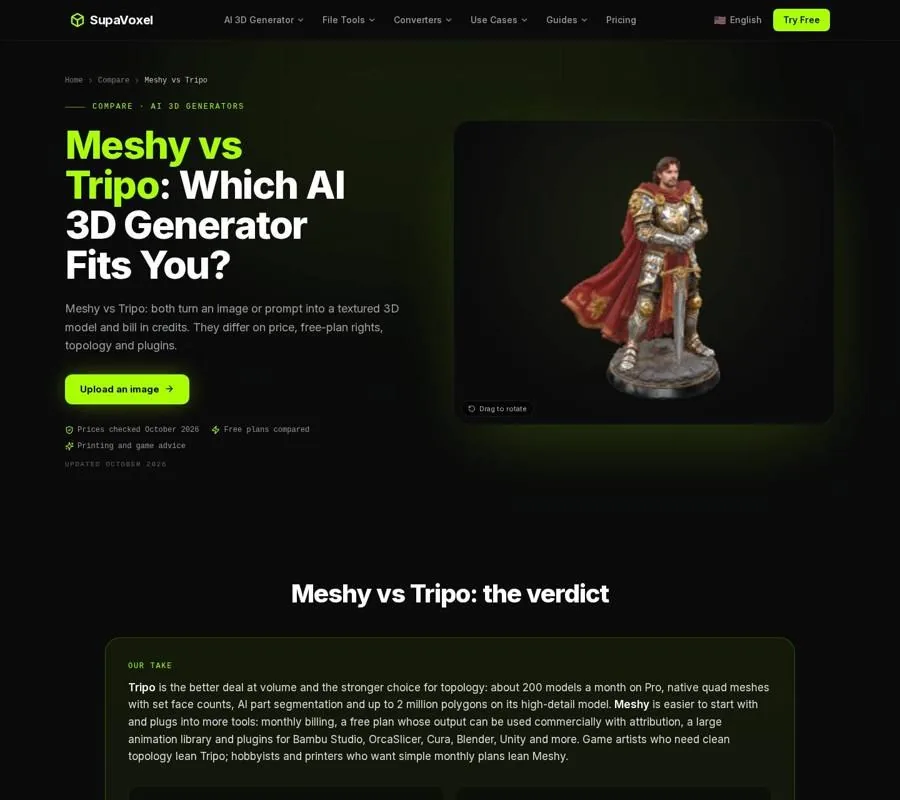
The comparison page collects the format and workflow differences worth checking before a hands-on test.
- Use the same source material. Start with a clear view of one object. If you add reference angles, keep them consistent across tests; both platforms accept up to 4 views.
- Inspect the untextured shapes. Rotate each mesh and check its silhouette, openings, thin attachments, and boundaries between parts. Textures can make an unclear form look finished in a still image.
- Test the intended task. Move a character through poses that stress its joints, or place a prop under the lighting and camera distance you expect in the game. Check whether surface detail comes from geometry or maps.
- Open the export downstream. Both platforms offer FBX, OBJ, GLB, and STL exports. Use the format your next application accepts, then check the actual imported mesh, rig, and materials rather than assuming the preview represents them.
Keep a note of what you would have to fix: edge flow, material assignment, silhouette, or movement. “Looks good” is too vague to guide a pipeline choice; a short cleanup list tells you which output saves work.
Choose the first follow-up workflow
For a static textured prop, I would evaluate Meshy’s material output first, especially if retexturing an existing shape could solve the task. If the asset needs crisp hard surfaces or a tightly controlled mesh budget, I would test Tripo Smart Mesh alongside it and compare the exports in the target editor.
For an animated character, I would start with Tripo Smart Mesh if topology and subsequent rig work are the main risks. I would start with Meshy if rapid motion testing and its animation library are more valuable. Either way, the deciding test is not whether auto-rigging runs; it is whether the character bends acceptably and the exported rig fits the rest of the project.
Usage rights belong on the checklist too. As of October 2026, Meshy’s free output uses CC BY 4.0, allowing commercial use with attribution. Tripo’s free models are public and non-commercial. Check the applicable terms before using a test asset in a shipped game.
When a generator is not enough
A generator may provide a promising base mesh without delivering the topology, UVs, materials, or style consistency required across a production set. If the real requirement is artist-reviewed assets against a style guide, that is a different purchasing decision. The Kaedim AI service comparison explains the distinction between Kaedim’s managed, artist-checked production and self-serve generation. As of October 2026, Kaedim’s managed service uses custom quotes rather than a public price list.
I would make that move only after identifying the work an automated output leaves behind. For an isolated prop, manual cleanup may be reasonable. For a set of characters that must share deformation standards and visual style, define those standards before commissioning or generating the next asset. A consistent brief gives you a fairer way to judge any tool or service.
FAQ
Is Meshy or Tripo better for rigging?
Both offer auto-rigging on their own platforms. Meshy supports humanoids and quadrupeds and offers animation presets; Tripo supports humanoids and animals and offers Smart Mesh quads. Test deformation and the exported rig for your character before choosing.
Do more polygons make a better game asset?
Not by themselves. Extra geometry may help a close-up shape, but it also needs to serve the asset’s movement and use in the game. Inspect silhouette, edge flow, and texture maps alongside the face count.
Can I decide from the platform preview alone?
I would not. View the untextured mesh, test motion if the asset is animated, and import the exported file into its destination. That is where material, topology, and rig cleanup become visible.